
Webflow Custom Code: Why It Breaks, Fixes, and What to Check First
- Most custom code issues in Webflow aren’t caused by the code itself - they come from where it was placed, when it loads, or what it depends on before it runs.
- The three injection points (site-wide, page-level, and embed elements) each behave differently, and placing a script in the wrong one is the most common source of silent failures.
- Native Webflow features should handle everything they reliably can like interactions, layout, motion, and state changes before custom code is introduced, because native tools carry less maintenance risk.
- When custom code is the right choice - for granular conversion tracking, UTM-based personalization, multi-step forms, or structured data - it needs to be scoped tightly to the page or component that actually needs it.
- Poorly implemented scripts can silently damage Core Web Vitals scores, corrupt attribution data, and drag down conversion rates on high-spend landing pages without triggering an obvious error.
- Every piece of custom code should be documentable in one sentence - what it does, where it lives, and why it’s there - and anything that can’t pass that test is likely to become technical debt nobody wants to inherit.
Webflow gives you a lot of flexibility before you ever touch code. For most marketing sites, that’s the point. You can build fast, launch quickly, and keep the CMS manageable without turning every change into a dev task. But once custom code enters the picture, small mistakes start to matter. A script in the wrong place or a dependency that loads too late.
For marketing teams at tech and B2B SaaS companies, the problem is rarely that custom code is impossible to have. The problem is that code gets added without a clear use case, a clear scope, or a clear maintenance plan. That’s why this article is not about whether custom code belongs in Webflow - it’s about the failure points that show up when it’s added carelessly.

Is Custom Code the Problem or the Setup?
Most custom code issues in Webflow don’t even come from the code itself. They come from where it was added, when it loads, what it depends on, or how it interacts with the rest of the stack.
A script can work perfectly in isolation and still fail on the live site because another tag loads later, a CMS field is named incorrectly, or a page-level embed gets overridden by a global setting. That’s why troubleshooting should start with the setup, not just the snippet.
For marketing teams, this matters because custom code often sits inside important workflows: tracking, forms, personalization, pricing tables, tabs, or integrations. If that code fails, it does not just create a technical issue. It can affect reporting, lead capture, conversions, and the team’s ability to move quickly.
Where Webflow Custom Code Usually Lives
Webflow gives you three main places to add code, and the placement affects both behavior and maintenance:
- Site-wide head and body code in Project Settings for scripts that need to load across the whole site.
- Page-level custom code for scripts that only belong on one page.
- Embed elements for code that needs to sit in a specific place in the page structure.
That distinction sounds basic, but it’s where many issues begin. A tracking snippet added site-wide when it only needs to run on a pricing page adds unnecessary load. A script placed in an embed when it should load before the page renders may fail entirely. The right placement is not just a technical detail - it affects performance, stability, and how easy the site is to maintain later.
Common Failure Points
The script loads in the wrong order
Many Webflow issues happen because one script depends on another script that hasn’t loaded yet. If you are using third-party tools, analytics tags, or custom interactions, order matters. A snippet that looks correct can still fail if it runs before the DOM is ready or before an external library has finished loading.
The code is scoped too broadly
If code only belongs to one page, it should not be loaded across the whole site. Global code increases the chance of conflicts and adds performance overhead. It also makes debugging harder because you have more moving parts on every page.
The code conflicts with another tool
This is common in marketing stacks with GTM, analytics pixels, chat widgets, HubSpot embeds, or experimentation tools. One script can override another, duplicate events, or block a form from behaving correctly. When that happens, the issue is often not obvious until someone tests the full stack together.
The code depends on CMS content that changed
A lot of custom Webflow code depends on field names, collection structures, or page slugs. If a content editor changes one of those without knowing the code depends on it, the behavior can break silently. The more tightly the code is tied to content structure, the more careful the team has to be.
The site is slowing down because of script weight
Custom code can create performance issues when it adds too much load to the page or blocks rendering. That’s especially risky on landing pages where speed directly affects conversion rates. Even a small delay can matter when paid traffic is landing cold.
What to Check Before You Start Debugging
Before you rewrite anything, run through the basics:
- Confirm where the code lives: site-wide, page-level, or embed.
- Check whether the script depends on another library or external service.
- Verify that it loads after the elements it needs are available.
- Test whether another tag or widget is interfering.
- Compare the live site with preview or staging behavior.
- Look at browser console errors for missing files, syntax issues, or blocked resources.
If the code worked in one environment but not another, the problem is usually context, not logic. That is why testing in the real page environment matters more than assuming the snippet is correct because it worked somewhere else.
Webflow Native Tools vs. Custom Code
The question isn’t which approach is better - it’s knowing which one fits the problem in front of you. Used well, native Webflow and custom code aren’t competing. They cover different ground.
Use native Webflow features when:
- The interaction can be built with the Designer or Interactions panel.
- The workflow doesn’t need external dependencies.
- The goal is to keep the site easy for marketing to manage without dev involvement.
- The logic is simple enough that custom code would only create maintenance overhead.
- You want the built-in performance benefits: clean HTML output, automatic image compression, CDN delivery, and Core Web Vitals that hold up without extra configuration.
That’s especially true for motion, layout, and simple state changes. If Webflow can solve it without code, that’s usually the better option - less fragility, fewer dependencies, and a site that’s easier to hand over and maintain.
Use custom code when:
- You need conditional form logic or multi-step form behavior.
- Personalization based on URL parameters, UTM values, or cookies is required.
- GTM and conversion tracking setups need more granular control - for example firing specific events tied to CTA interactions to feed cleaner signal data back into Google Ads or Meta campaigns.
- Dynamic UI behavior needs to respond to user input in real time.
- Third-party scripts (CRMs, chatbots, enrichment tools) need to be integrated cleanly into the page.
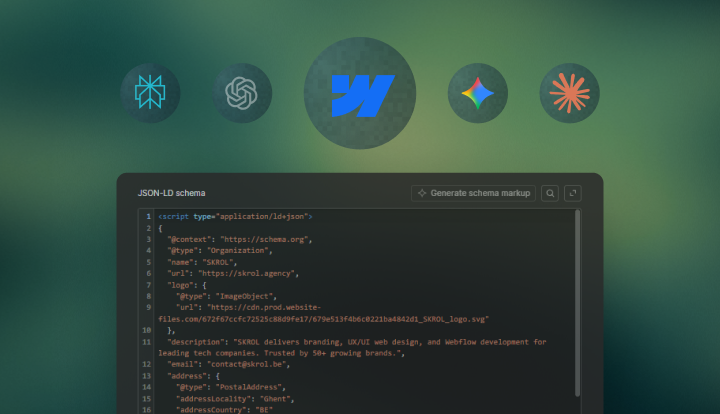
- Advanced SEO requirements go beyond native defaults - JSON-LD structured data, dynamic Open Graph tags, hreflang tags, or canonical logic for paginated content all require custom code embeds.
For B2B SaaS marketing teams, most of these aren’t edge cases. They’re what makes landing pages, forms, and conversion paths actually perform at scale.
Good to know: poorly implemented custom code can work against you. Render-blocking scripts, bloated third-party embeds, and unminified JS can damage Core Web Vitals scores - which are direct SEO ranking signals. The standard practice is to load scripts async or deferred, keep site-wide code for global scripts like analytics, and use page-level embeds only where needed. Keep the code targeted, documented, and easy to remove when the requirement changes.
How to Keep Custom Code Maintainable
The best custom code in Webflow is the code nobody has to think about twice.
That starts with documentation. Every script should make it obvious what it does, where it lives, and why it exists. If someone else inherits the site 6 months from now, they should be able to understand the purpose without reading through the entire codebase. It also means keeping code as close as possible to the page or component that needs it. If a script only belongs on the pricing page, it shouldn’t be loaded everywhere. If a function only helps one form, it should not be wrapped into a site-wide system unless there is a real reason to do that.
For teams that move fast, maintainability is not a nice-to-have. It’s actually what keeps custom code from becoming the thing that slows the site down later.
Custom Code That Serves the Marketing Team
For a developer, adding custom code to Webflow is a technical decision. For a marketing leader, it’s an operational one - and the distinction matters more than most teams realize until something breaks.
The wrong custom code setup doesn’t just create bugs. It can silently corrupt tracking data, crook campaign attribution, drag down page speed on high-spend landing pages, and pull the team back into dev dependency for changes that should take minutes. That’s the opposite of what Webflow is supposed to give a marketing team: the ability to move fast, iterate without a ticket queue, and own the site without needing an engineer in the room.
The right approach isn’t to avoid code entirely. Most B2B SaaS marketing sites need some of it - for forms, personalization, tracking precision, or integrations that native Webflow can’t handle cleanly. But there’s a difference between code that quietly does its job and code that becomes the reason nothing else works.
Keep it scoped. Keep it documented. And if a piece of custom code can’t be explained in one sentence - what it does, where it lives, and why it’s there - it probably needs to be revisited before it becomes the thing that nobody wants to touch.
The goal is a Webflow site that still feels like a marketing asset six months after launch, not a maintenance project that’s quietly accrued technical debt nobody budgeted for.
Frequently Asked Questions
The most common causes are incorrect placement, script load order issues, conflicts with other tools, or a dependency that isn’t available when the code runs. Start by checking which of the three injection points the script is in - site-wide head/body, page-level, or an embed element - because each one affects when and how the code executes. Then check whether the script depends on an external library that may not have loaded yet, and open the browser console to look for missing files, syntax errors, or blocked resources. If the code worked in preview but not on the live site, the issue is almost always environmental, not logical.
Yes, whenever native tools can solve the problem cleanly - and that covers more ground than most teams assume. Webflow’s Interactions panel, CMS, and Designer handle the majority of motion, layout, and state changes without any code. Native features also come with built-in performance advantages: clean HTML output, automatic image compression, CDN delivery, and Core Web Vitals that hold up without extra configuration. Custom code should only enter the picture when native tools genuinely can’t do what the site needs - conditional form logic, URL-based personalization, granular tracking events, or advanced SEO requirements like JSON-LD structured data. If the native toolset can solve it, that’s almost always the more stable, maintainable path.
Yes, and this is one of the more common issues on marketing sites that have accumulated scripts over time. Render-blocking code, unminified JavaScript, and heavy third-party libraries can all damage Core Web Vitals scores - which are direct SEO ranking signals and have a measurable impact on conversion rates on paid landing pages. The risk compounds when scripts are loaded site-wide instead of scoped to the pages that actually need them. Best practice is to load scripts async or deferred wherever possible, audit what’s running on high-traffic pages specifically, and treat every third-party embed as a performance cost worth weighing against the value it delivers.
Test the script in context, not just in isolation. A snippet can work perfectly in a sandbox and still fail on the live site because another tag loads later, a required DOM element isn’t available yet, or a global script is interfering. Check placement, load timing, dependencies, and whether other embeds or GTM tags could be conflicting. Browser console errors will usually point directly at the problem - missing files, undefined variables, and blocked resources all leave clear signals. In most cases, when code works in one environment but not another, the logic is fine and the setup is the issue.
Webflow does allow site export on eligible plans, and custom code added via embed elements is included in the exported HTML. However, there are important limitations. Code injected through Site Settings or Page Settings is not included in the export. Webflow’s CMS data, dynamic bindings, and interactions also don’t transfer cleanly into a static export, which means any custom code that depends on those features may not behave correctly outside the Webflow environment. For teams evaluating portability or planning a future migration, it’s worth auditing which scripts are tied to Webflow-specific structures before assuming the codebase is fully transferable.